
Transforming Copilot Key to Ctrl for new Windows laptops
So recently I renewed my laptop, as I have been using it for more than 5 years, and the back panel is falling off. I got an ASUS Zenbook UX3405, but although I knew before purchasing, there was a Copilot key next to my Alt key. My previous laptops all had the Ctrl key where the Copilot key is currently placed, and every time I try to do some shortcuts using right Ctrl, I am opening Copilot. This is outrageous and makes me furious every time I do it.
1. Download Microsoft PowerToys
Either from your Microsoft Store or your favorite browser. Just download it.
If you are downloading from your browser, open Microsoft PowerToys Installer.exe, and follow the directions as they appear on your screen.

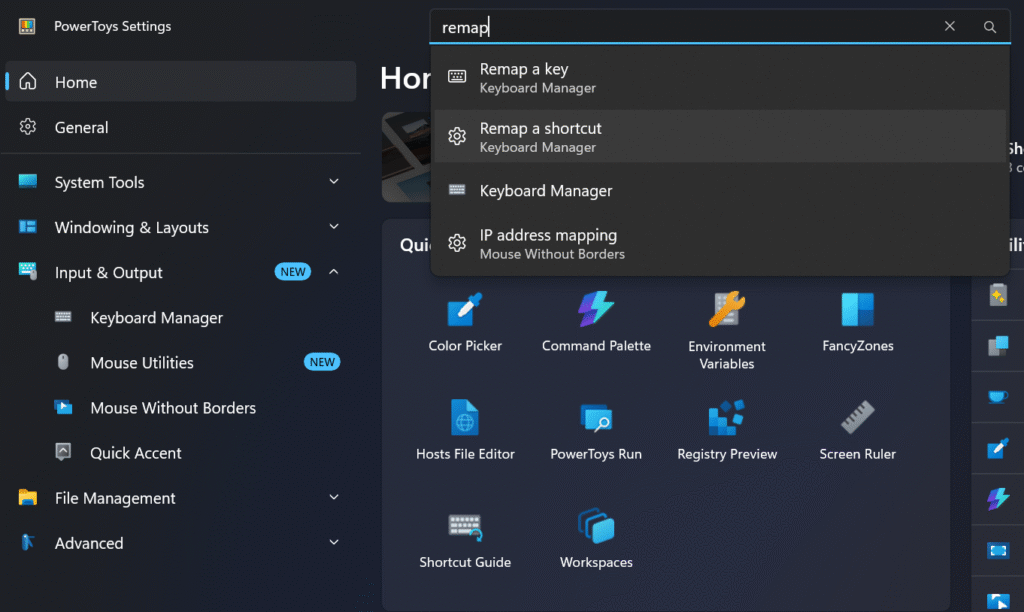
2. Select “Remap a Shortcut”
Not “Remap a key”; just search “Remap” or something like that in the search bar, and select “Remap a shortcut”. Within Keyboard Manager, there is a section called “Remap a shortcut” so select that
3. Remapping
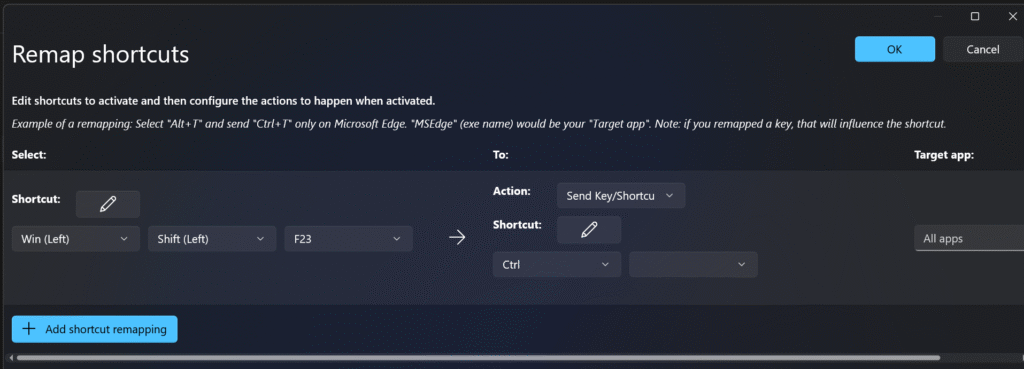
- Add Shortcut Remapping (blue button)
- Click “Shortcut: (with pencil icon)” under Select
- Select your Copilot key (on your keyboard)
- Click OK after seeing “Win (Left), Shift (Left), F23”
- Send key/shortcut under Action, under To
- Select the box under Shortcut, under Action
- Select Ctrl from the list
- Do not touch the box that is next to Ctrl
- Click OK on the top-right of the window
That’s it! I hope you guys made it.